Jen
A website needs to display approved articles with headings, links, and images intact. After fetching the content from Busa CMS, what's the recommended way to render it? Is there an example field setup or implementation to follow?
A website needs to display approved articles with headings, links, and images intact. After fetching the content from Busa CMS, what's the recommended way to render it? Is there an example field setup or implementation to follow?

You can start with the Busa CMS template rather than designing the article schema yourself. On its page, choose Install this template, sign in, and select your workspace. It provides the Posts, Pages, Categories, and Tags Bases that busabase-cms-sdk reads, plus a CMS admin App, sample content, and an Agent manual. Review the App and manual Change Requests created during installation before using them.
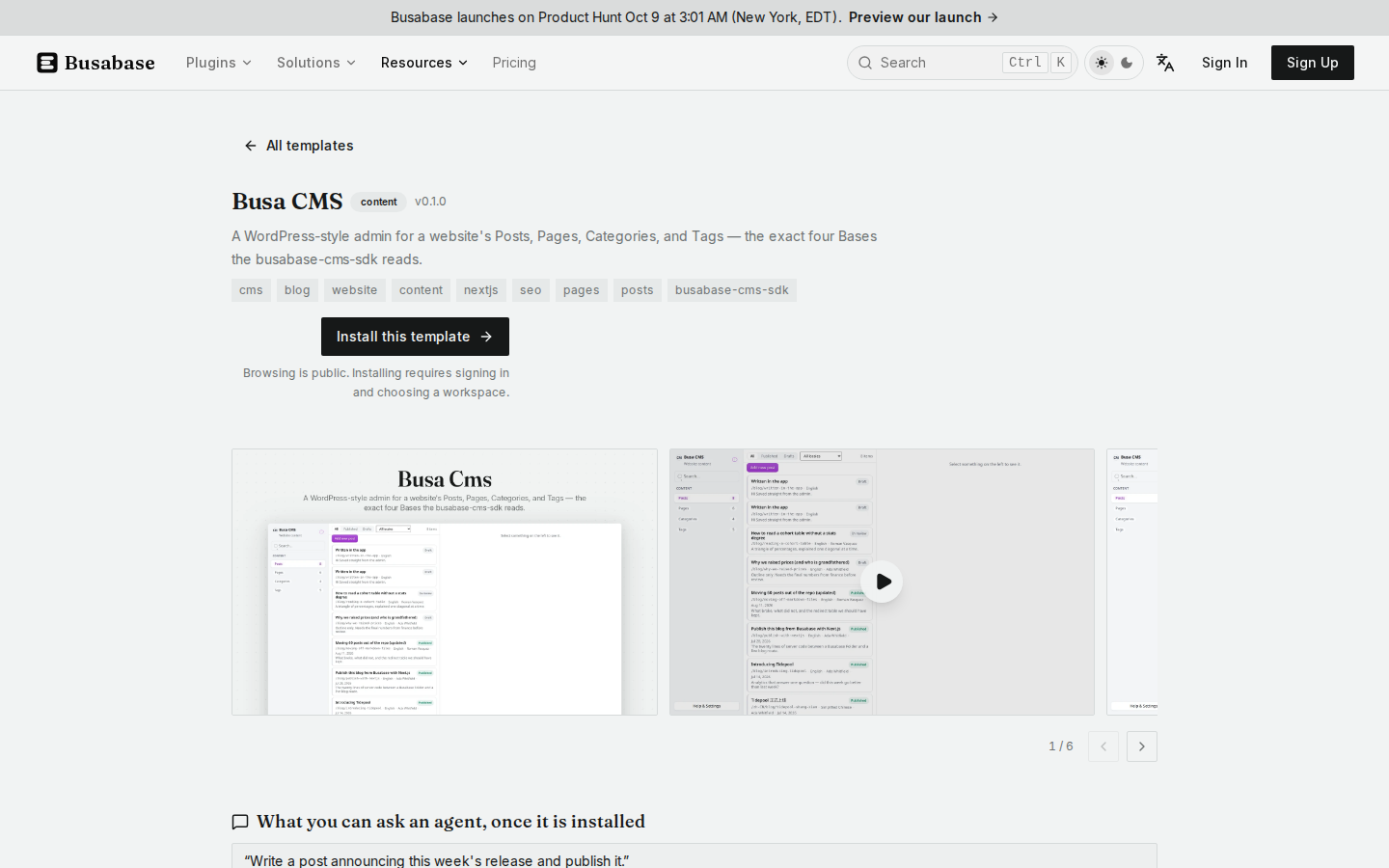
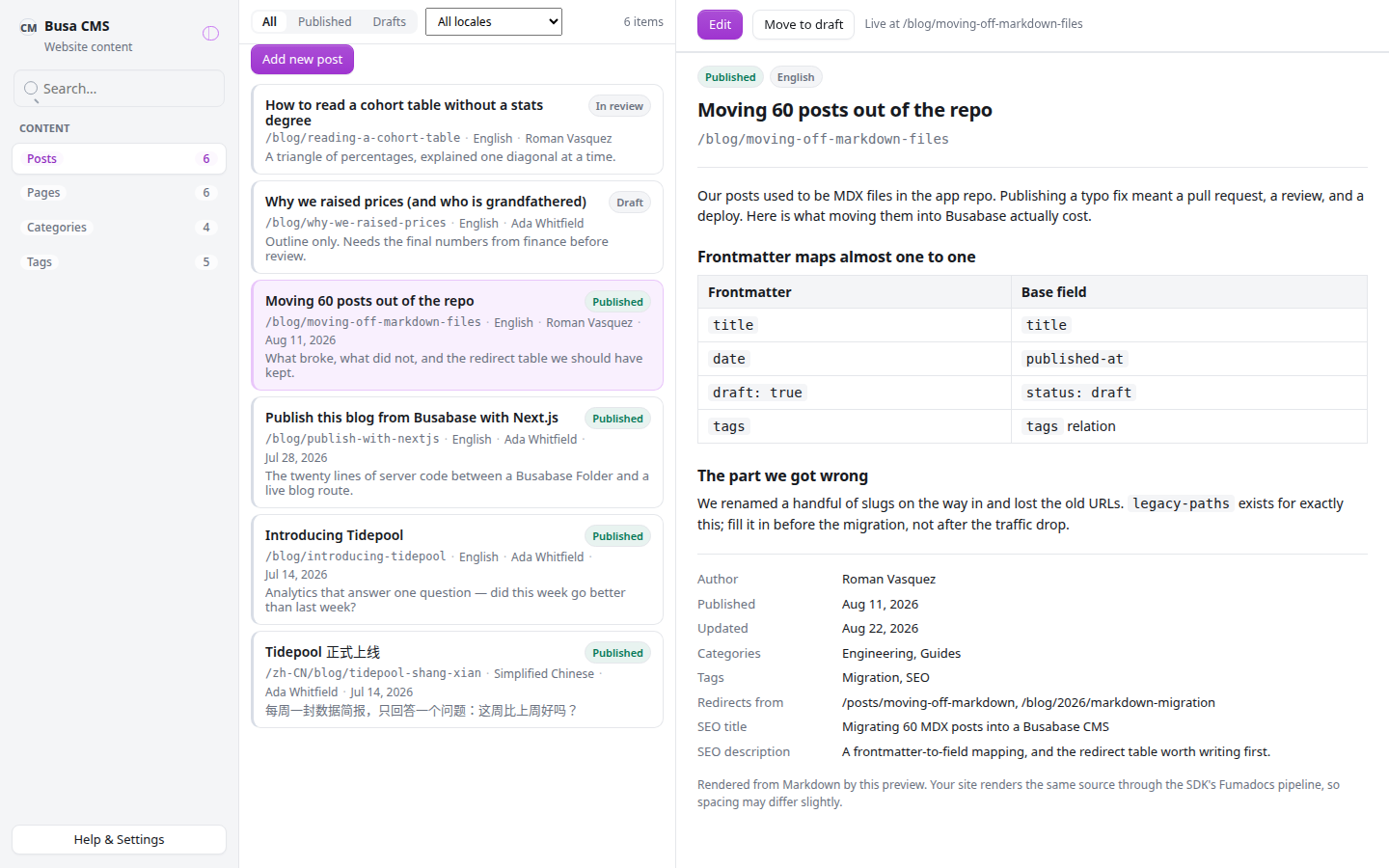
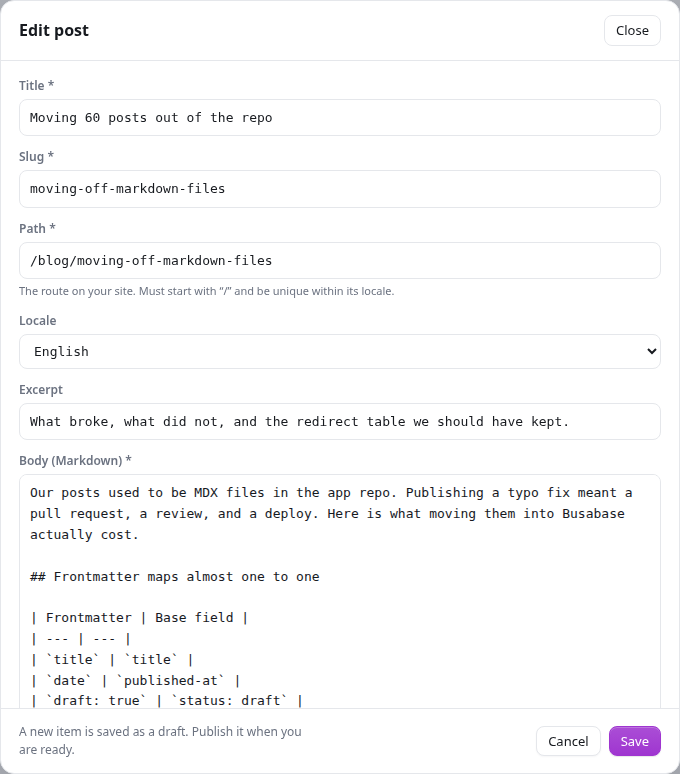
In the installed Busa CMS App, open Posts and add or edit an article. Keep the heading in Title, the public route in Path, and the article itself in Body (Markdown). The App starts new posts as drafts; publish a post when it is ready. Its preview shows what the Markdown will look like, while the SDK serves only active records marked published.
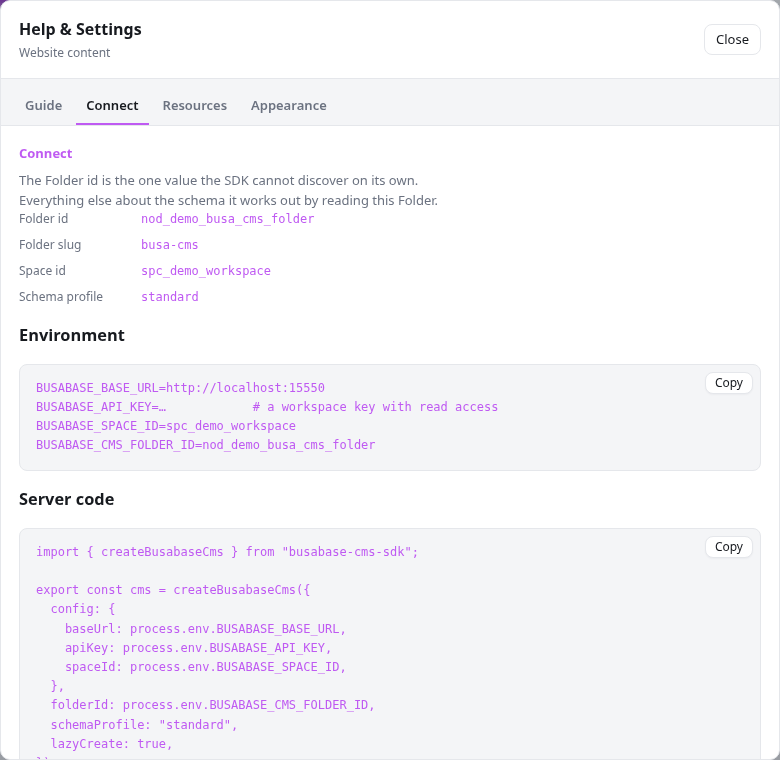
To connect your Next.js website, open Help & Settings → Connect in *your installed App*. It shows your Folder ID and copyable environment and server-code snippets. Install the CMS SDK in your website with npm i busabase-cms-sdk, then use your own Connect values in server-side code. The IDs and localhost in this demo screenshot are examples, not values to copy. Keep the API key on the server, out of the browser.
For the website render, read a published Post with the SDK and render its body as Markdown, not plain text. The runnable Next.js example shows the complete setup; its Post page renders post.title as the heading, post.body with SafeMarkdown, and post.coverImage separately. Inline images belong in the Markdown as ; files in attachments are listed separately unless you insert their accessible URL into the body. Make sure readers can open any image URL your site renders.
Sign in to join the discussion. Reading is always open; you only need an account to post.
Sign in