If Chinese looks garbled after you open an exported CSV in Excel, check display encoding before you assume the export corrupted the text. Most of the time the file is still valid UTF-8; Excel guessed the wrong character set when it opened it.
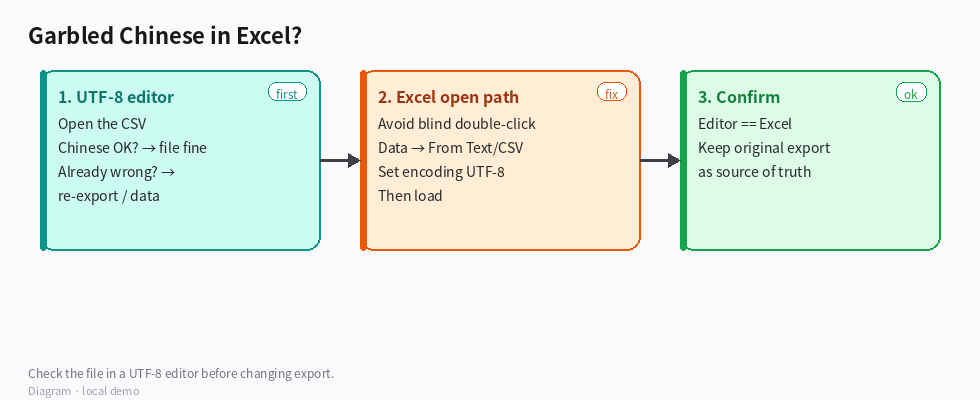
(Diagram: verify in a UTF-8 editor first; then reopen in Excel with UTF-8.)
What to check, in order
1. Is the file itself fine?
Open the same CSV in a plain editor that respects UTF-8 (VS Code, Notepad++, macOS TextEdit set to Unicode, etc.).
- If Chinese reads correctly there → the export is fine; Excel’s open path is the problem.
- If it is already wrong in the editor → then look at export settings / re-export; don’t “fix” Excel first.
2. How did Excel open it?
Double-clicking a .csv often makes Excel use the system’s default ANSI code page (for example a Windows Chinese locale), which turns UTF-8 into mojibake. Prefer:
- Data → From Text/CSV (or Get Data), choose the file, set File Origin / encoding to UTF-8, then load.
- Or import via Power Query with UTF-8 selected.
3. Still unsure?
Compare one distinctive cell (a name with uncommon characters) in the UTF-8 editor vs Excel. Same glyphs → display only. Different glyphs in the editor → real data issue.
How to confirm it was only display
- UTF-8 editor shows correct Chinese.
- Excel after UTF-8 import matches the editor.
- Re-saving from Excel as CSV without care can introduce a *new* encoding; keep the original export as the source of truth.
Boundaries
- “Looks wrong in Excel” ≠ “Busabase stored wrong characters.” Prove it in a UTF-8 editor first.
- Opening, editing, and re-saving in Excel can change encoding; treat that as a second risk.
- Colleagues on different OS locales will see different double-click behavior — document the UTF-8 import steps for the team.
Example goal for an Agent
When exporting Base data for Excel users: remind them to open via Data → From Text/CSV with UTF-8. If Chinese looks wrong, first verify the file in a UTF-8 editor before changing any export pipeline.
That order saves a lot of false “encoding bugs”: display first, data second.